Network performance profiling#
ROCm Systems Profiler supports network performance profiling. It can be performed using two methods:
Sampling conventional NIC metrics using PAPI#
Network performance profiling for conventional network interfaces that support TCP/IP is done using Performance Application Programming Interface (PAPI). This method profiles standard network events. You can sample the events based on standard network interface counters. Follow the steps to list all the network events, sample them using configuration parameters, instrument and run the generated binary, and visualize the Perfetto trace.
List available network events#
List all the network events that can be traced on the system by running the command:
rocprof-sys-avail -H -r net
For example, if the name of system’s NIC is enp7s0, the output is:
|-------------------------------|---------|-----------|-------------------------------|
|       HARDWARE COUNTER        | DEVICE  | AVAILABLE |            SUMMARY            |
|-------------------------------|---------|-----------|-------------------------------|
| net:::enp7s0:rx:byte          |   CPU   |   true    | enp7s0 receive byte           |
| net:::enp7s0:rx:packet        |   CPU   |   true    | enp7s0 receive packet         |
| net:::enp7s0:rx:error         |   CPU   |   true    | enp7s0 receive error          |
| net:::enp7s0:rx:droppe        |   CPU   |   true    | enp7s0 receive droppe         |
| net:::enp7s0:rx:fif           |   CPU   |   true    | enp7s0 receive fif            |
| net:::enp7s0:rx:fram          |   CPU   |   true    | enp7s0 receive fram           |
| net:::enp7s0:rx:compresse     |   CPU   |   true    | enp7s0 receive compresse      |
| net:::enp7s0:rx:multicas      |   CPU   |   true    | enp7s0 receive multicas       |
| net:::enp7s0:tx:byte          |   CPU   |   true    | enp7s0 transmit byte          |
| net:::enp7s0:tx:packet        |   CPU   |   true    | enp7s0 transmit packet        |
| net:::enp7s0:tx:error         |   CPU   |   true    | enp7s0 transmit error         |
| net:::enp7s0:tx:droppe        |   CPU   |   true    | enp7s0 transmit droppe        |
| net:::enp7s0:tx:fif           |   CPU   |   true    | enp7s0 transmit fif           |
| net:::enp7s0:tx:coll          |   CPU   |   true    | enp7s0 transmit coll          |
| net:::enp7s0:tx:carrie        |   CPU   |   true    | enp7s0 transmit carrie        |
| net:::enp7s0:tx:compresse     |   CPU   |   true    | enp7s0 transmit compresse     |
|-------------------------------|---------|-----------|-------------------------------|
Configure the parameters#
To track bytes and packets sent and received by NIC enp7s0, configure the parameters as follows:
ROCPROFSYS_PAPI_EVENTS = net:::enp7s0:tx:byte net:::enp7s0:rx:byte net:::enp7s0:tx:packet net:::enp7s0:rx:packet
Sample configuration parameter settings look like:
ROCPROFSYS_SAMPLING_FREQ=10
ROCPROFSYS_USE_SAMPLING=ON
ROCPROFSYS_TIMEMORY_COMPONENTS=wall_clock papi_array network_stats
ROCPROFSYS_NETWORK_INTERFACE=enp7s0
ROCPROFSYS_PAPI_EVENTS=net:::enp7s0:tx:byte net:::enp7s0:rx:byte net:::enp7s0:rx:packet net:::enp7s0:tx:packet
PAPI_NET_REFRESH_LATENCY=100000
Details of the configuration parameter settings configured in the example are:
Sampling Frequency: 10 samples per second
TIMEMORY: Outputs the summaries for the
wall_clock,papi_array, andnetwork_statscomponents.Network Interface:
enp7s0is the predictable network interface device name.Events for the network device to be sampled: Bytes transmitted, bytes received, packets transmitted, and packets received.
PAPI_NET_REFRESH_LATENCY: The shortest latency (in microseconds) with which PAPI updates network statistics. The default value is 1000000 (1s).
You can save the configuration parameter settings in a configuration file. For example, rocprofsys.cfg:
ROCPROFSYS_VERBOSE=1
ROCPROFSYS_DL_VERBOSE=1
ROCPROFSYS_SAMPLING_FREQ=10
ROCPROFSYS_SAMPLING_DELAY=0.05
ROCPROFSYS_SAMPLING_CPUS=0-9
ROCPROFSYS_SAMPLING_GPUS=all
ROCPROFSYS_TRACE=ON
ROCPROFSYS_PROFILE=ON
ROCPROFSYS_USE_SAMPLING=ON
ROCPROFSYS_USE_PROCESS_SAMPLING=OFF
ROCPROFSYS_TIME_OUTPUT=OFF
ROCPROFSYS_FILE_OUTPUT=ON
ROCPROFSYS_TIMEMORY_COMPONENTS=wall_clock papi_array network_stats
ROCPROFSYS_USE_PID=OFF
ROCPROFSYS_OUTPUT_PREFIX=foo/
ROCPROFSYS_NETWORK_INTERFACE=enp7s0
ROCPROFSYS_PAPI_EVENTS=net:::enp7s0:tx:byte net:::enp7s0:rx:byte net:::enp7s0:rx:packet net:::enp7s0:tx:packet
PAPI_NET_REFRESH_LATENCY=100000
To specify the configuration file, use the ROCPROFSYS_CONFIG_FILE setting:
ROCPROFSYS_CONFIG_FILE=/path/to/rocprofsys.cfg
This setting defines the location of the ROCm Systems Profiler configuration file.
Note
PAPI network counters (net::: events) read /proc/net/dev directly and
do not require kernel perf event access. They work regardless of the value of
/proc/sys/kernel/perf_event_paranoid, so no special privileges or kernel
configuration changes are needed.
Instrument and run the binary#
Instrument the binary file using the
rocprof-sys-instrumentcommand:
rocprof-sys-instrument -o foo.inst  \
  --log-file mylog.log --verbose --debug \
  "--print-instrumented" "functions" "-e" "-v" "2" "--caller-include" \
  "inner" "-i" "4096" "--" ./foo
This command generates an instrumented binary foo.inst.
Run the instrumented binary using the following command:
rocprof-sys-sample -- ./foo.inst
Visualize the event-based profiling results#
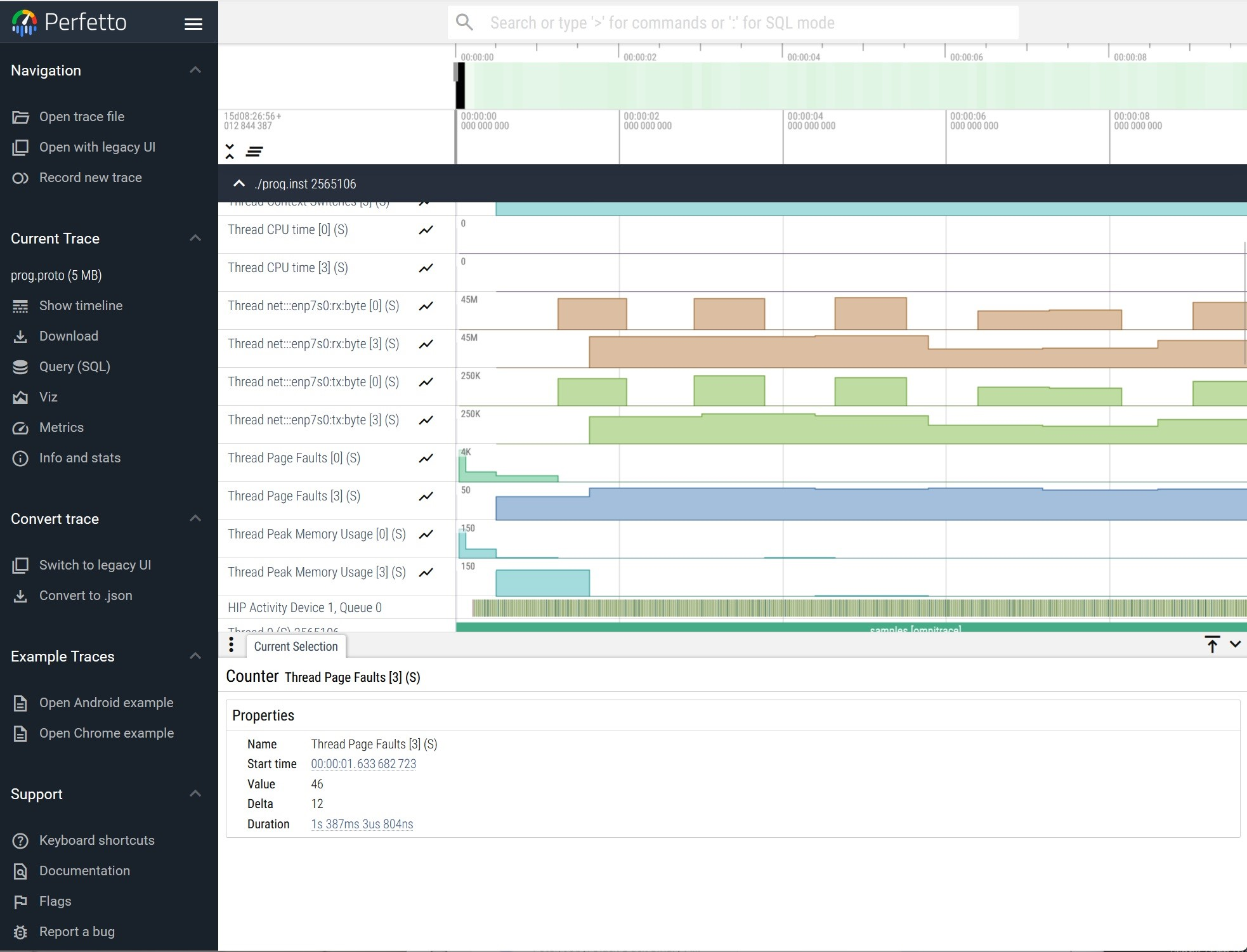
To view the generated .pftrace file in the browser, follow the steps:
Open the Perfetto UI page.
Click
Open trace fileand select the.pftracefile. In the browser, it looks like:
Sampling AI NIC metrics using amd-smi#
On a host system that has AI network interface cards, ROCm Systems Profiler can track the following metrics:
RX congestion notification packets
TX congestion notification packets
RX unicast bytes
TX unicast bytes
RX unicast packets
TX unicast packets
TX ACK timeout (the count of local ACK timeout errors)
RESP TX PKT SEQ ERROR (the count of packet sequence errors detected by responder)
REQ RX PKT SEQ ERROR (the count of packet sequence errors detected by requester)
REQ RX IMPL NAK SEQ ERROR (the count of ACK packets with invalid PSN detected by requester)
AI NIC support in ROCm Systems Profiler#
AI NIC interfaces support the Remote Direct Memory Access (RDMA) standard. RDMA
enables one computer to access another computer’s memory directly, without
operating-system involvement. This capability provides high-throughput, low‑latency
data transfer, which is needed for large-scale clusters and high-performance
networking. You can measure AI NIC network performance by using amd-smi.
By default, AI NIC support is enabled in ROCm Systems Profiler. However, you
can disable it by setting:
-D ROCPROFSYS_USE_AINIC=OFF
Verifying AI NIC compile-time support#
AI NIC metric collection requires ROCPROFSYS_BUILD_AINIC=ON at build time.
This flag is set automatically when the AMD SMI library version is 26.3 or
later and ROCPROFSYS_USE_AINIC=ON (the default).
The AI NIC settings (such as ROCPROFSYS_USE_AINIC) are only available when
the ROCm Systems Profiler is compiled with ROCPROFSYS_BUILD_AINIC=ON. Their
presence in the output of rocprof-sys-avail --settings is therefore a direct
indicator of whether AI NIC support was compiled in. This check requires no AI NIC
hardware.
rocprof-sys-avail --settings | grep ROCPROFSYS_USE_AINIC
If ROCPROFSYS_USE_AINIC is listed, AI NIC support is compiled in. If the
command produces no output, the binaries were built without AI NIC support.
List available AI NICs#
List all the available AI NICs with their unique identifiers by running amd-smi list:
$ sudo amd-smi list
AI_NIC: 0
    BDF: 0000:e2:00.0
    PERMANENT_ADDRESS: 04:90:81:2c:77:b0
    PRODUCT_NAME: POLLARA 1x400G QSFP112
    PART_NUMBER: POLLARA-1Q400P
    SERIAL_NUMBER: FPL250300A1EC0V2
    VENDOR_NAME: AMD Pensando Systems, Inc.
List the NETDEV name and more details of each available AI NIC by running amd-smi static:
$ sudo amd-smi static
AI_NIC: 0
    NIC:
...
        RDMA_DEVICES:
            RDMA_DEVICE_0:
                NAME: rocep229s0
                NODE_GUID: 0690:81ff:fe2c:77b0
                NODE_TYPE: CA
                SYS_IMAGE_GUID: 0690:81ff:fe2c:77b0
                FW_VER: 1.110.1-a-1
                PORT_0:
                    NETDEV: enp229s0
                    PORT_NUM: 1
                    STATE: DOWN
                    MAX_MTU: N/A
                    ACTIVE_MTU: N/A
From this output, use the NETDEV value (here, enp229s0) as the name of
the AI NIC.
Sampling the AI NICs#
After the AI NIC support is enabled, specify the names of the AI NICs for which
you want to track the values. For example, if the host has an AI NIC named enp229s0
there are multiple options to track its performance:
Option 1: Set
ROCPROFSYS_SAMPLING_AINICSin the configuration file.Example:
ROCPROFSYS_SAMPLING_AINICS=enp229s0
Option 2: Set
ROCPROFSYS_SAMPLING_AINICSas an environment variable.Example:
export ROCPROFSYS_SAMPLING_AINICS=enp229s0
Option 3: Pass
--ai-nicstorocprof-sys-sampleon the command line. (Preferred)Example:
rocprof-sys-sample --ai-nics=enp229s0 -- <your command>
If you use
rocprof-sys-sampleto profile the AI NIC interfaceenp229s0while running the commandwget -O /dev/null --no-check-certificate https://example.com, the full command is:rocprof-sys-sample --ai-nics=enp229s0 --device -- \ wget -O /dev/null --no-check-certificate https://example.com
If you want to track multiple NICs on the host, provide them as a comma-separated list:
rocprof-sys-sample --ai-nics=enp229s0,enp229s1 --device -- \ wget -O /dev/null --no-check-certificate https://example.com
The value of the
--ai-nicsparameter can also be:all: tracking all NICs available on the host.
none: not tracking any NICs.
Visualize the AI NIC profiling results#
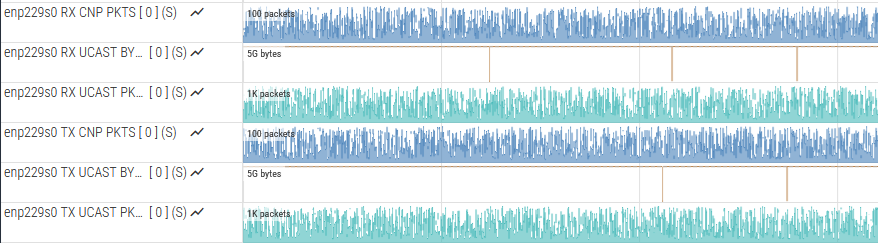
To view the .pftrace file generated by rocprof-sys-sample in the browser, follow the steps :
Open the Perfetto UI page.
Click
Open trace fileand select the.pftracefile. The tracks for AI NIC in the generated.pftracefile look like:
Save the profiling output to rocpd#
To save the output to rocpd, run rocprof-sys-sample as described above in
Option 3 with the --output-format rocpd argument. This
generates a .db file, for example rocpd-2594634.db.
rocprof-sys-sample --output-format rocpd -- ./your_application
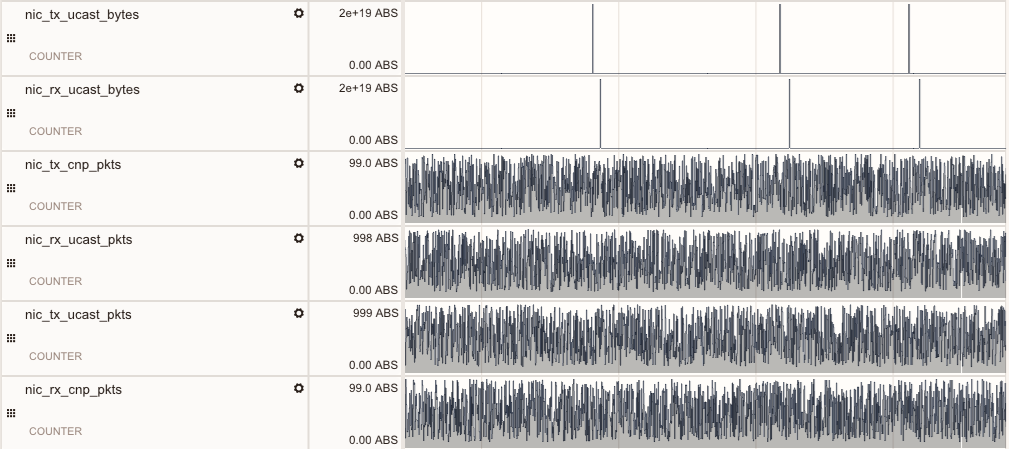
You can view the generated file in ROCm Optiq. The AI NIC tracks look like this: