Building and installing hipDF from source#
2026-07-29
6 min read time
For developers, the following topic walks you through all necessary steps for building hipDF from source files. For your convenience, the steps for the full installation including python enablement are condensed into the install_hipdf.sh script. Read and edit the script carefully to adapt the environment variables for your installation.
The following provides details on building the C++ components, running tests and benchmarks, and for building the full hipDF installation including the Python layer. End users should see the Installation instructions.
See System requirements for information regarding supported operating systems, ROCm versions, and AMD GPUs before building and installing hipDF.
Build procedure for the C++ components#
Building the C++/HIP components of hipDF can be achieved via the following command:
./build.sh libcudf tests benchmarks
Here, tests and benchmarks are optional flags that enable the respective additional functionalities.
Note
In order to fetch the dependencies git needs to be installed on your system.
Running tests and benchmarks#
To run the tests use:
ctest --test-dir cpp/build/
To run the benchmarks use:
find cpp/build/benchmarks/ -type f -executable -exec {} \;
Building and installing hipDF including the Python layer#
You will perform the following steps:
Step 1: Install Conda#
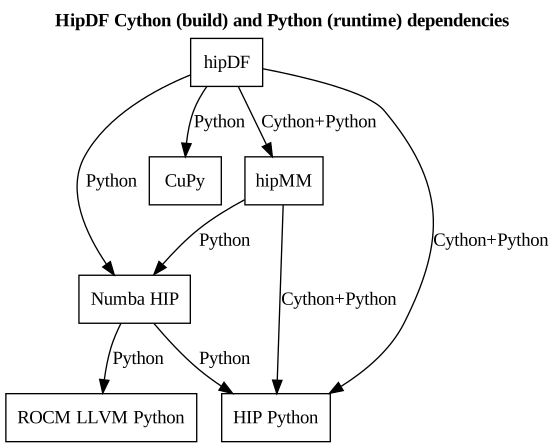
hipDF must be built inside of a predefined Conda environment to ensure that it is working properly. While the hipDF build process fetches C++ dependencies itself, it has Cython and Python dependencies (CuPy, Numba HIP, hipMM, HIP Python, ROCm LLVM Python) that need to be installed into the hipDF Conda environment before you can build and run the package. The following diagram gives an overview:
On an x86 Linux machine it is possible to download and install Miniforge with the following command:
wget https://github.com/conda-forge/miniforge/releases/latest/download/Miniforge3-Linux-x86_64.sh
sh Miniforge3-Linux-x86_64.sh
For other architectures and operating systems take a look at the webpage of Miniforge.
Step 2: Clone the hipDF repository#
Create a work directory /tmp/hipdf and clone the hipDF release branch into this directory:
mkdir -p /tmp/hipdf # NOTE: feel free to adapt
cd /tmp/hipdf

git clone -b release/rocmds-26.03 https://github.com/AMD-Ecosystem/hipDF hipdf
Step 3: Create and activate hipDF Conda environment hipdf_dev.#
Create and activate the hipdf_dev Conda environment via:
cd /tmp/hipdf/hipdf

conda env create --name hipdf_dev --file conda/environments/all_rocm_arch-x86_64.yaml
conda activate hipdf_dev
Step 4: Install CuPy into hipdf_dev#
Via AMD PyPI (recommended)#
conda activate hipdf_dev
pip install amd-cupy~=13.5.1 --extra-index-url=https://pypi.amd.com/rocm-7.2.3/simple
From source#
These instructions use the AMD MI300 GPU (gfx942 architecture). The following only serves
as an example. HCC_AMDGPU_TARGET can be set to any supported architecture.
In order to build CuPy from source, you will not only require the library packages (
hipblas,hipfft, …) but also additional development packages (-devsuffix on Ubuntu). Please ensure they are installed.Typical install command (may require super user privileges):
apt-get update

apt install -y rocthrust-dev hipcub hipblas \
               hipblas-dev hipfft hipsparse \
               hiprand rocsolver rocrand-dev
Note
Some ROCm installations may require that you append the ROCm version as suffix to the package names (example:
hipblas-dev7.0.0). You can understand what to do via therocm-corepackage, which will be installed for any ROCm installation. Check if the installedrocm-corepackage has the ROCm version as suffix viaapt list, then install the CuPy build dependencies accordingly.Clone the CuPy release branch into the work directory:
cd /tmp/hipdf
git clone -b release/rocmds-26.03 https://github.com/ROCm/cupy cupy
Build and install the CuPy wheel:
cd /tmp/hipdf
git submodule update --init
conda activate hipdf_dev
python3 -m pip install build scipy
export CUPY_INSTALL_USE_HIP=1
export ROCM_HOME=/opt/rocm        # NOTE: adapt to your environment
export HCC_AMDGPU_TARGET="gfx942" # NOTE: set AMD GPU architecture(s)
SETUPTOOLS_BUILD_PARALLEL=${MAX_JOBS:-1} python3 -m build --wheel
CUPY_WHEEL=$(find ~+ -type f -name "*cupy*.whl")
pip install ${CUPY_WHEEL}
You can specify the AMD GPU architectures via the HCC_AMDGPU_TARGET
environment variable (add a separator if needed: ,) as shown.
Refer to Release Compatibility
for supported GPU architectures.
Step 5: Install Numba HIP into hipdf_dev.#
Provide the version of your ROCm installation here via the
optional dependency key rocm-X-Y-Z, as shown in the following command.
conda activate hipdf_dev

pip install --upgrade pip
pip install --extra-index-url https://pypi.amd.com/rocm-7.2.3/simple \
  numba-hip[rocm-7-2-3]@git+https://github.com/rocm/numba-hip.git
  # NOTE: adapt ROCm key to your Python version
Step 6: Install hipMM into hipdf_dev#
Via AMD PyPI (recommended)#
pip install amd-hipmm==4.0.0 --extra-index-url=https://pypi.amd.com/rocm-7.2.3/simple
From source#
The following instructions use the AMD MI300 GPU (gfx942 architecture). However, this
is only for example purposes. RAPIDS_CMAKE_HIP_ARCHITECTURES can be
set to any supported architecture.
Clone the hipMM release branch into the work directory:
cd /tmp/hipdf
git clone -b release/rocmds-26.03 https://github.com/AMD-Ecosystem/hipMM hipmm
Build and install the hipMM wheel:
conda activate hipdf_dev

cd /tmp/hipdf/hipmm
export RAPIDS_CMAKE_HIP_ARCHITECTURES="gfx942" # NOTE: set AMD GPU architecture(s)
export CXX="hipcc"  # Cython CXX compiler, adapt to your environment
export CMAKE_PREFIX_PATH="${CMAKE_PREFIX_PATH}:/opt/rocm/lib/cmake" # NOTE: ROCm CMake package location, adapt to your environment

./build.sh librmm rmm # Build rmm and install into `hipdf_dev` conda env.
You can set the AMD GPU architecture(s) to build for via the
RAPIDS_CMAKE_HIP_ARCHITECTURES environment variable (separator: ;), or rely on auto detection.
Step 7: Install hipDF into hipdf_dev#
These instructions use the AMD MI300 GPU (gfx942 architecture). However, this
is only for example purposes. CUDF_CMAKE_HIP_ARCHITECTURES can be set
to any supported architecture.
Install the amd-hipdf Python package as shown below:
conda activate hipdf_dev

cd /tmp/hipdf/hipdf
export CXX="hipcc"  # Cython CXX compiler, adapt to your environment
export CMAKE_PREFIX_PATH=${CMAKE_PREFIX_PATH}:/opt/rocm/lib/cmake

export PARALLEL_LEVEL=16 # NOTE: number of build threads, adapt as needed

export LDFLAGS="-Wl,-O2 -Wl,--sort-common -Wl,--as-needed -Wl,-z,relro -Wl,-z,now -Wl,--disable-new-dtags -Wl,--gc-sections -Wl,--allow-shlib-undefined -Wl,-rpath,/lib/x86_64-linux-gnu/ -Wl,-rpath,${CONDA_PREFIX}/lib -Wl,-rpath-link,${CONDA_PREFIX}/lib -L${CONDA_PREFIX}/lib"

export CUDF_CMAKE_HIP_ARCHITECTURES="gfx942" # NOTE: adapt to your AMD GPU architecture

bash build.sh libcudf pylibcudf cudf # NOTE: the build target is called 'cudf'
You can set the AMD GPU architecture(s) to build for via the
CUDF_CMAKE_HIP_ARCHITECTURES environment variable (separator: ;), or rely on auto detection.
Step 8: Verify correct installation#
To verify that hipDF was installed correctly, see Verifying your hipDF Installation.