Run the Wan 2.2 inference template in ComfyUI#
2026-05-01
1 min read time
Wan 2.2 is an advanced AI video generation model capable of producing high-resolution videos from text descriptions or input images. With support for various aspect ratios and customizable generation parameters, Wan 2.2 enables creative video synthesis for a wide range of applications.
Setup#
To run this workflow:
Follow the ComfyUI on ROCm installation steps to set up the ComfyUI environment and launch the ComfyUI WebUI.
Select Template from the navigation panel on the left and search for the Wan 2.2 14B Text to Video template.
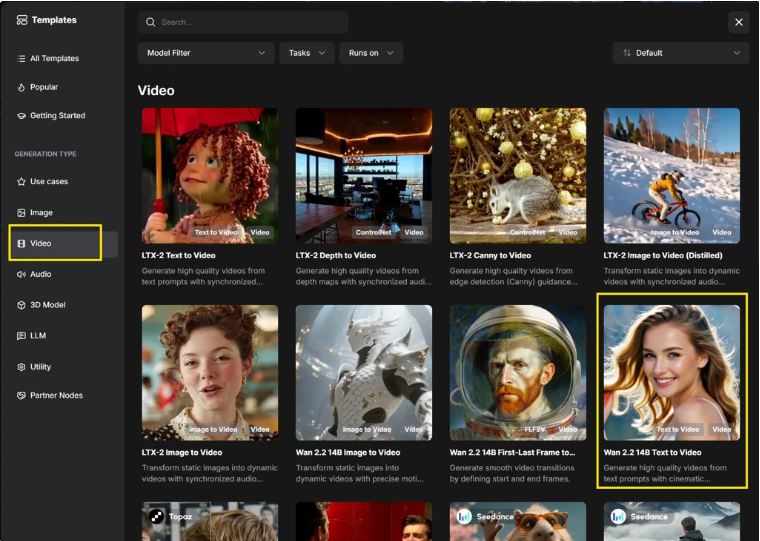
Templates → Video: under Generation type, choose Video, then open the Wan 2.2 14B Text to Video template (for example, double-click the card).#
Once the template is loaded, click Run to execute the workflow.
Trigger a run#
To trigger a run, enter prompts in the CLIP Text Encode nodes for positive and negative prompts, then click Run.
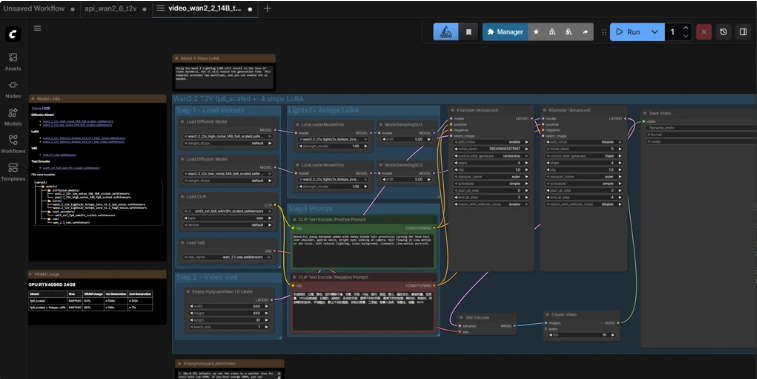
Loaded workflow: set positive and negative text in the CLIP Text Encode nodes, then use the blue Run button (top right). Model loaders and other nodes follow the template layout (for example, Wan2.2 T2V fp8_scaled).#
You can see workflow progress at the top of the UI in the green progress bar near the top of the browser.