Customize ROCm Optiq#
You can customize display settings, filters, bookmarks, and more in ROCm Optiq.
Change settings#
You can adjust the settings in your ROCm Compute Profiler and ROCm Systems Profiler projects.
Use the Edit > Preferences menu to open the Settings dialog. The following settings can be adjusted:
The application theme (Light or Dark).
The multi-node decorators visibility. This controls whether to enable node colors in the System Topology View view and node labels in the track descriptions.
The topology sidebar icon button visibility. This controls whether the
 (show/hide track) and
  (go to track) icon buttons display in the sidebar of the System Topology View.
The font size.
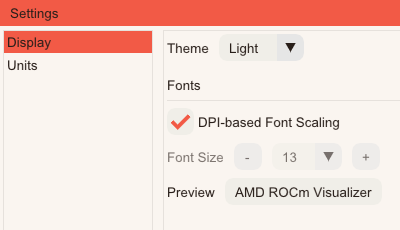
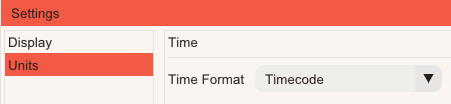
The time unit settings displayed on the Timeline View:
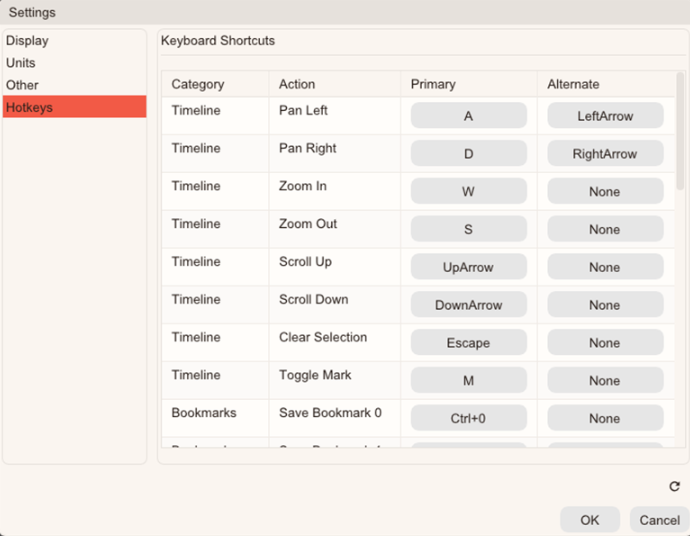
The hotkey settings allow keyboard shortcuts to be redefined:
Show/hide panels#
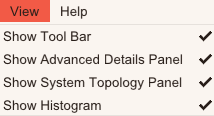
Use the View menu to show and hide application panels.
Customize projects for ROCm Systems Profiler traces#
You can customize the data views of an open ROCm Systems Profiler trace file in ROCm Optiq, including timeline display settings, bookmarks, annotations, and more.
Note
These settings only apply to ROCm Systems Profiler trace projects. They don’t apply to ROCm Compute Profiler projects.
Add an annotation#
Annotations are customized notes you can add to any area of the Timeline View.
To add an annotation:
Click + from the Annotations section of the toolbar:

Annotations can also be added by right-clicking on the Timeline View and clicking the Add Annotation context menu option.
The Annotation dialog displays. Provide a title and your note, then click the X button to close the note and create the annotation.
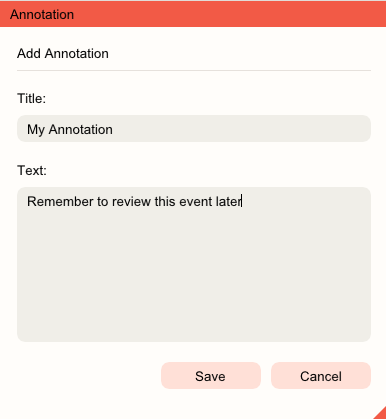
Once saved, the annotation displays as a marker that can be expanded on the timeline.
Annotations are track-bound and follow their tracks when scrolling, reordering, or rearranging the timeline. Expanded notes open as movable floating windows with inline editing; empty notes are discarded automatically. A time guide line appears while a note is hovered or dragged.
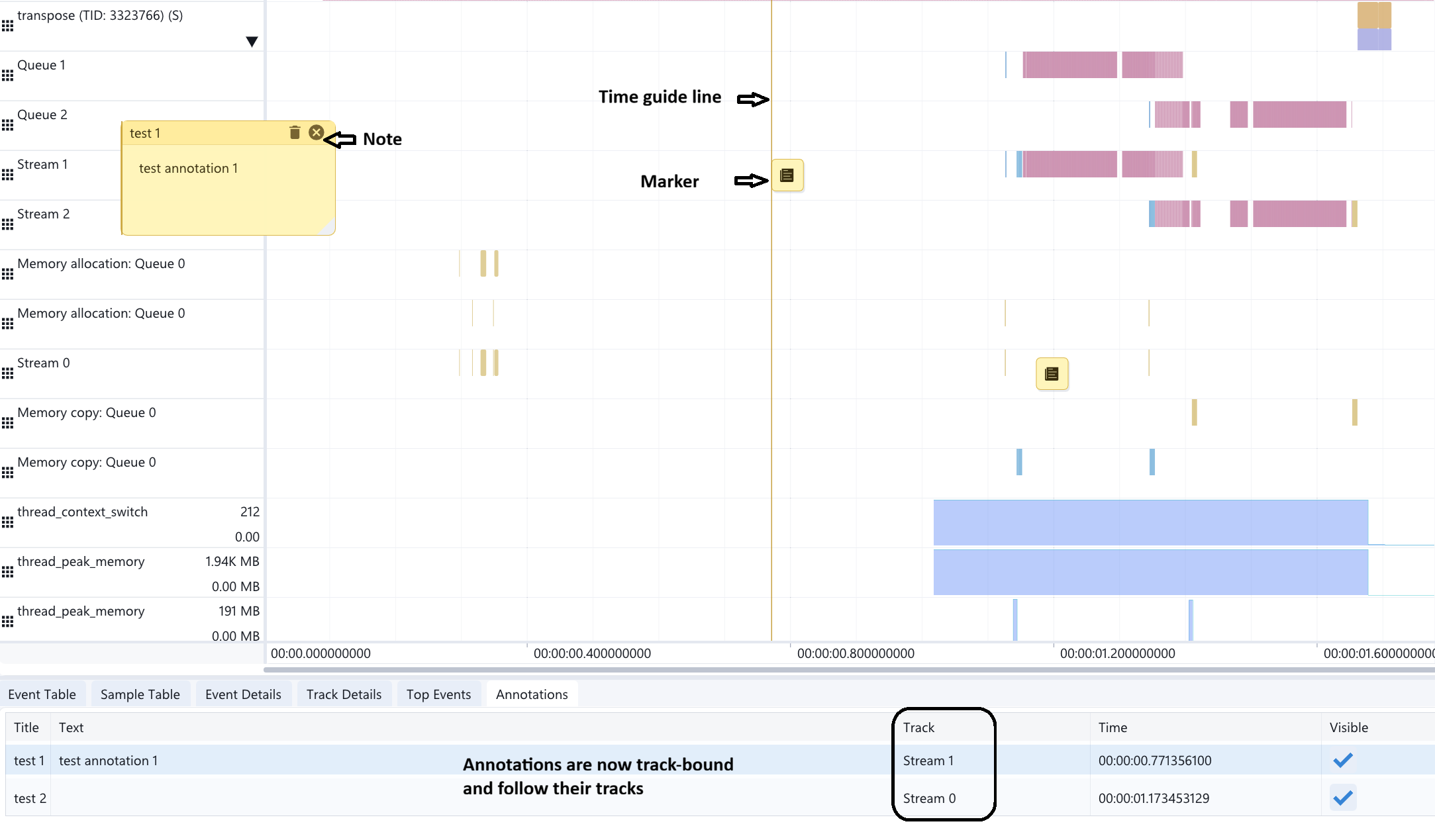
The Annotations tab in the Advanced Details section shows a list of annotations. Each row shows the annotation title, the note, the track it is attached to, its start time, and a checkbox for visibility. Clicking a row brings the selected annotation into view on the timeline. You can use Lock Annotation to lock an annotation to prevent accidental drag or rebind. You can choose Go-to-Anchor to bring the view back to the annotation’s anchor point.
Tip
View the complete list of annotations in the Annotations tab of the Advanced Details section.
Check the Visibility option in the Annotations tab to toggle the visibility of individual annotations.
Clicking a row in the annotations list brings the selected annotation into view on the timeline.
Create bookmarks#
The current view on the timeline (scroll and zoom position) can be saved to a bookmark for quick navigation.
To create and use a bookmark:
Click + in the
 menu from the main Toolbar.
Select the bookmark number to navigate to it.
Or:
Press Ctrl + any key from 0 - 9 to create a view bookmark. The bookmark saves to an index based on the number used and creates a shortcut.
Press any key from 0 - 9 to restore the view to a stored bookmark from that index number shortcut. For example, if you save a bookmark using Ctrl + 1, pressing 1 restores that bookmark.
Delete bookmarks#
Use the following actions to delete bookmarks or reset the view.
Select X to delete a bookmark from the
menu.Select Reset View to return the Timeline View to its original pan and zoom settings.
Customize timeline display options#
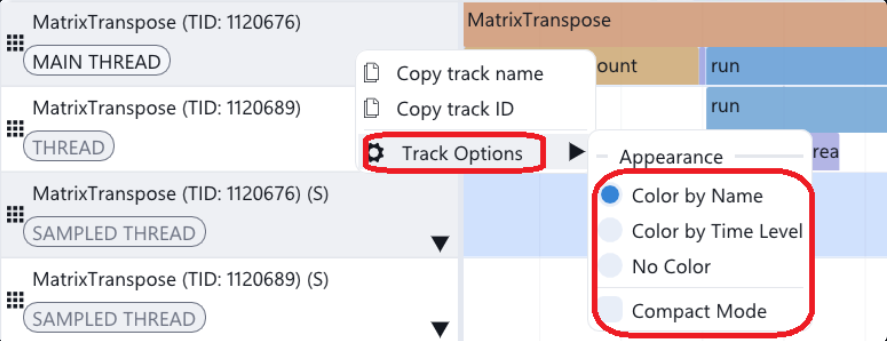
Customize display options for each track by right clicking the Description area to open the track’s context menu. Select Track Options to customize the track’s display options.
Select which tracks Track Options apply to by selecting Current Track, Selected Track(s), or the track type label (Queue Tracks, Stream Tracks, Thread Tracks).
For event tracks, you can toggle between Color by Name, Color by Time Level, No Color, and Compact mode.
Color by Name: All events with the same name share a color.
Color by Time Level: Events with the same name but different start times have different colors.
No Color: Events render without name-based coloring.
Compact mode: Shrink event track heights to display tall flame graphs in a smaller area.
For sample counter tracks, you can toggle between Show Counter Boxes, Alternate Counter Coloring, and Highlight Y Range:
Show Counter Boxes: Display as a line only, or fill the area under the line as well.
Alternate Counter Coloring: If the area under the line is filled, alternate the fill color for each sample.
Highlight Y Range: Select an area of the graph to highlight. Choose the minimum and maximum range that you want to highlight. The tool highlights these values on the track region.
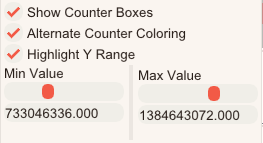
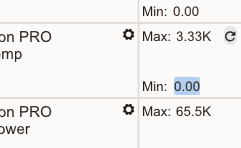
For sample counter tracks, you can set the min and max when showing the tracks:
Click on the value beside the min and max to set/change the scale range.
Click
 to restore the values to their default.
Tip
The context menu when right-clicking a track’s description in Timeline View also provides Copy track name and Copy track ID. You can select multiple tracks and apply a Track Options change to all selected tracks at once instead of repeating the change per track.
Set the flow rendering display mode#
Use the Flow buttons on the toolbar to show and hide flow information on the Timeline View, or change the flow display mode from Render (fan) to Chain mode.
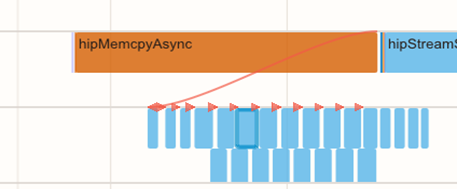
Chain mode displays events in a linked sequence, emphasizing dependencies and execution order. This is useful when analyzing how operations are chained together across queues or streams.
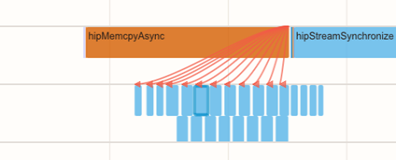
Fan mode shows events in a fan-out style, highlighting parallelism and branching. This helps visualize concurrency and how multiple operations originate from a single source.
Note
Chain mode and Fan mode are visualization modes for relations. They don’t represent the actual kernel scheduling flow.
Save a project file#
Persist the customizations made to tracks, bookmarks, and annotations by saving the session as a project (.rpv file).
Select File > Save As to create a new project.
Select File > Save to overwrite the currently opened project.
Remove Optiq-specific metadata from an open trace file#
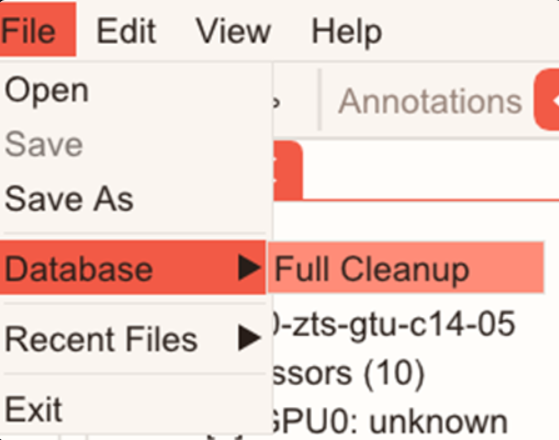
You can remove metadata added by ROCm Optiq during processing trace data by selecting File > Database > Full Cleanup.
Customize views for ROCm Compute Profiler analysis data#
Presets#
Persist the pinned metric configurations for the Table View and Baseline Comparison by saving them as a preset. To do this, go to Presets, enter a preset name into the New Preset Name field, then click  .
.
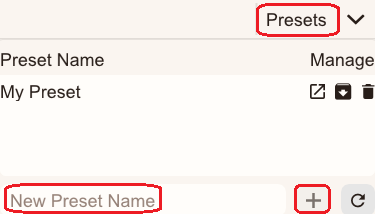
After a preset is saved, you can:
Recall it by clicking
 in the preset’s row.
Overwrite it by clicking
 .
.Delete it by clicking
 .
.