ComfyUI image generation on ROCm#
ComfyUI is an open-source, node-based interface for building and running image generation workflows with diffusion models such as Stable Diffusion. Its modular graph-based design lets you construct, customize, and share complex pipelines without writing code. This page walks through installing and running ComfyUI on AMD GPUs.
Prerequisites#
Ensure your working environment is running ROCm-enabled PyTorch on a supported system. See Install PyTorch on ROCm 7.13.0 for instructions.
Important
On Windows, ComfyUI might not start if Smart App Control is enabled in your Windows security settings.
Installation#
After installing ROCm and PyTorch in your Python environment, follow these steps to install ComfyUI.
Clone the ComfyUI repository.
git clone https://github.com/comfyanonymous/ComfyUI.git
Activate your Python virtual environment and install dependencies.
pip install -r ComfyUI/requirements.txt
pip install -r ComfyUI\requirements.txt
Run ComfyUI#
Use the following steps for a simple example of running ComfyUI.
Start the ComfyUI server from the command line.
python ComfyUI/main.pypython ComfyUI\main.py
This starts the server, displaying a prompt like:
To see the GUI go to: http://127.0.0.1:8188
Go to
http://127.0.0.1:8188in your web browser. You might need to replace8188with the appropriate port.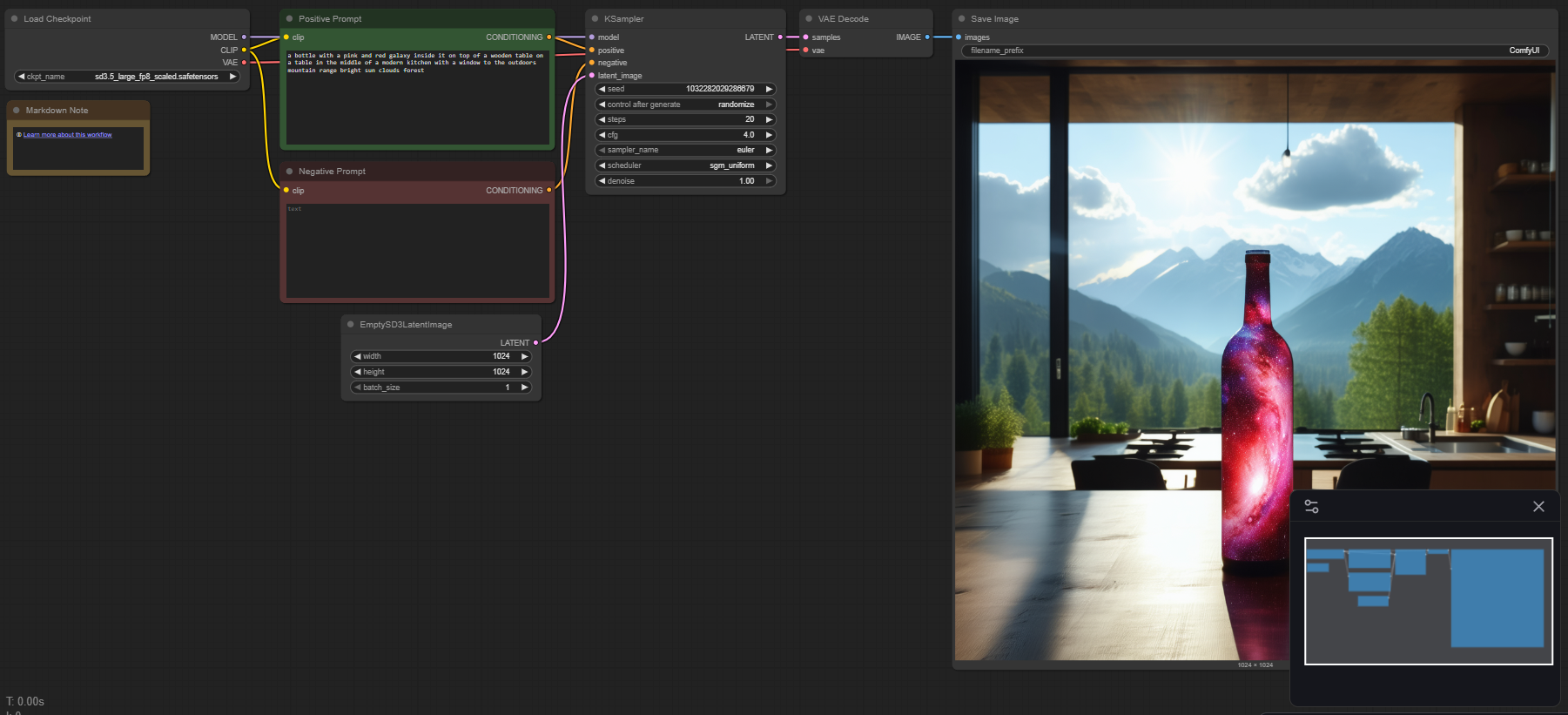
Search for one of the following templates and download any missing models.
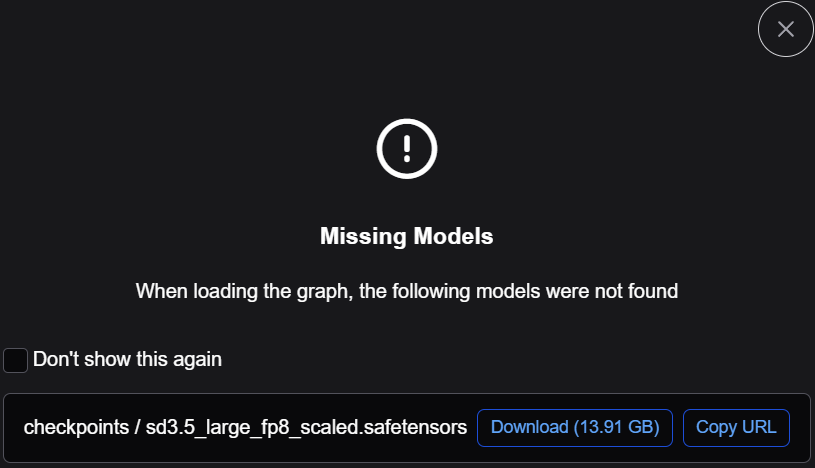
Select Template → Model Filter → SD3.5 → SD3.5 Simple

Download required models, if missing.
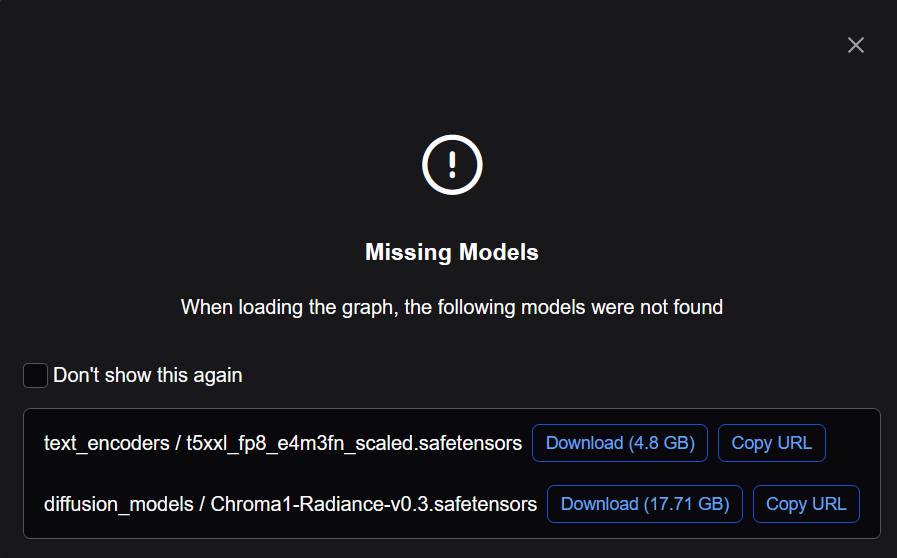
Select Template → Model Filter → Chroma → Chroma1 Radiance text to image

Download required models, if missing.
Click the Run button.
The application will use your AMD GPU to convert the prompted text to an image.
See also
To learn more about the ComfyUI interface and workflows, see the ComfyUI documentation.