View trace data in ROCm Optiq#
2026-02-11
8 min read time
ROCm Optiq provides a detailed view of a trace: a complete record of profiling data captured during an application run, including all event tracks, sample counters, and metadata. It captures what happened, when it happened, and often how long it took.
Traces contain event tracks and counter tracks:
An event track is a horizontal lane in the profiler’s timeline view that displays individual events such as API calls (for example, ROCm functions), kernel dispatches on the GPU, CPU function calls, or other execution units. Each event is shown as a bar positioned according to its start and end timestamps, allowing you to visualize execution order and duration.
A counter track is a timeline track that displays the value of a metric that changes over time. These tracks show a sampled scalar value at a specific timestamp. Examples of information shown in a counter track include:
Processor frequency
Data traffic (bytes sent/received)
Memory usage
Hardware counter values
Thermal readings
Open a trace file#
ROCm Optiq supports the ROCm database formats (.db and .rpd).
.dbfiles are trace files in the ROCm Profile Data (ROCpd) format generated by the ROCprofiler-SDK (rocprofv3) and ROCm Systems Profiler..rpdfiles are trace files in the ROCpd format generated by tools such as RPD tracer.
Select File > Open to open a trace. You can also open files by dragging and dropping them onto the application window.
Troubleshooting#
If the trace file doesn’t open, the file may be in an unsupported format. Convert the file to a supported format (.db or .rpd) using ROCm scripts.
To generate profiling data in a compatible ROCpd format for ROCm Systems Profiler:
Set the configuration environment to output data in the ROCpd format:
export ROCPROFSYS_USE_ROCPD=ON  # enable rocpd output
export ROCPROFSYS_USE_TRACE=OFF # disabling default Perfetto output
Trace your application with call-stack sampling:
rocprof-sys-sample -- ./your-application
Instrument your application using a binary rewrite:
rocprof-sys-instrument -o your-application.inst -- ./your-application
rocprof-sys-run -- ./your-application.inst
View trace data#
Once you open a trace file, you can view its data from the System Topology View and the Timeline View.
System Topology View#
The System Topology View displays a hierarchical representation of the hardware or system components such as nodes, processes and the GPU queues, memory operations, threads, and more that belong to them.
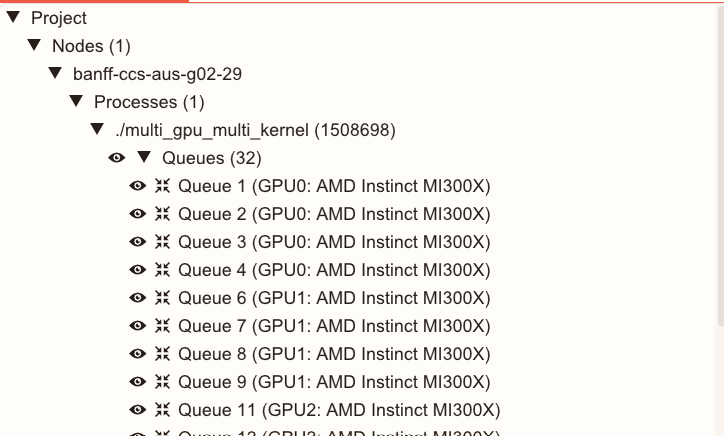
Click
 to show or hide tracks.
Click
 to go to the track in the Timeline View.
Timeline View#
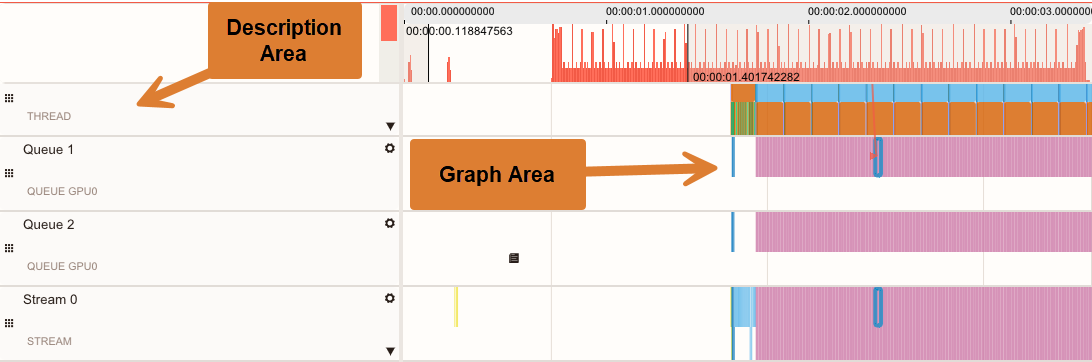
The Timeline View displays CPU and GPU activities, events, and performance metrics chronologically. You can:
Review events such as API calls, kernel dispatches, and more.
See performance counter data as charts displaying the data points.
Zoom, filter, and bookmark data for detailed analysis.
Correlate GPU workloads with in-application CPU events and performance with hardware resource usage, allowing for performance blockers to be easily identified and remedied.
The Timeline View has a Description area that describes a specific category of events or metrics within a profiling trace, and a Graph area where events and counter graphs are plotted:
Use the Timeline View#
Select a track#
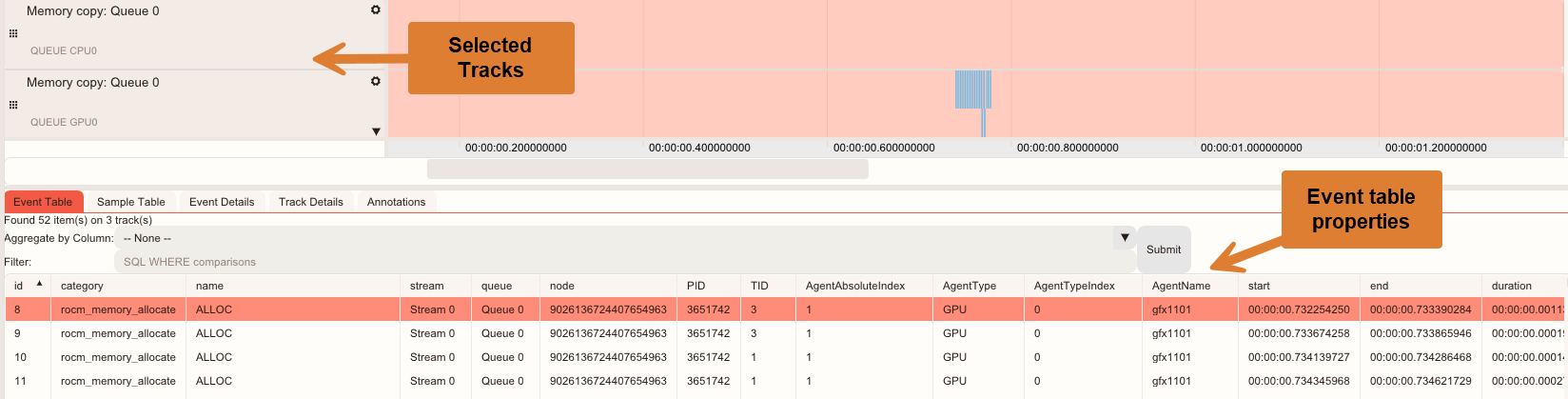
Clicking in the Description area selects or deselects the track. When a track is selected, the details display in the Track Details pane.
Additionally, depending on the track type, the Event Table or Sample Table tabs in the Advanced Details section will be populated by the contents of the track.
Select an event#
Clicking on an event in the Graph area selects or deselects an event.
Click on an event to select a single event.
Press and hold Ctrl while clicking events to select multiple events. If you click only one event, any previously selected events will be deselected.
When an event is selected, its event details are displayed in the Event Details tab of the Advanced Details section.
Tip
When you hover the mouse pointer over a region with high-density events, the application displays the total number of events in each category.
Resize or reorder tracks#
Resize tracks by dragging the separator lines between tracks.
Reorder tracks by clicking and dragging
 on the left side of the Description area.
Histogram#
The Histogram provides two display modes:
An event-density visual representation of all visible tracks.
A display across all tracks, visible and hidden.

When the Timeline View is zoomed in, the area currently in view is highlighted on the Histogram. The highlighted area in the Histogram can be dragged to scroll the Timeline View.
Advanced Details#
The Advanced Details section provides an in-depth view of profiling data, enabling you to analyze performance metrics and event-specific information. This section provides an interface for multiple data perspectives, offering granular insights through these components:
Event Table: Displays all events within the selected tracks. You can refine your analysis by applying a time-range selection or executing customized SQL-like queries, ensuring targeted event exploration.

Aggregate by Column: A drop-down menu that groups the results by the selected column. Click Submit to group the results. To remove the grouping, select – None – from the drop-down menu, then click Submit.
Filter: Enter SQL-like statements to filter the data. For example,
“duration > 2000”filters all events shorter than 2000 ns. Click Submit to filter the data.
Tip
Right-click on the column headers to show/hide columns, size a column to fit, or size all columns to fit your screen.
Right-click on a table row and select Go to event to navigate to the Timeline View to the highlighted event.
Set a time range filter using the Timeline View to filter the rows to data contained within the selected time range.
Sample Table: Presents all performance counter data points associated with the selected tracks. Similar to the Event Table, it supports time-range selection and SQL-like query capabilities for detailed performance analysis. It supports the Aggregate by Column drop-down to group the results by the selected column.
Event Details: Shows extended information about the event that is not shown in the timeline or the Event Table. It shows raw database information such as timestamps, duration, associated queue/stream, correlation IDs, and API method parameters. It also shows flow, call stack information, and function call arguments, if available.
Track Details: Shows additional information about the track that is not visible on the timeline. It shows the node the track belongs to and its details, the process it belongs to, and the track type (thread, counter, queue, and so on).
Annotations: Displays user-created annotations, enabling easier navigation across critical points within large traces, enhancing collaboration and knowledge sharing. See Add an annotation for more info.
Summary View#
The Summary View displays data from the top 10 kernels by execution time.
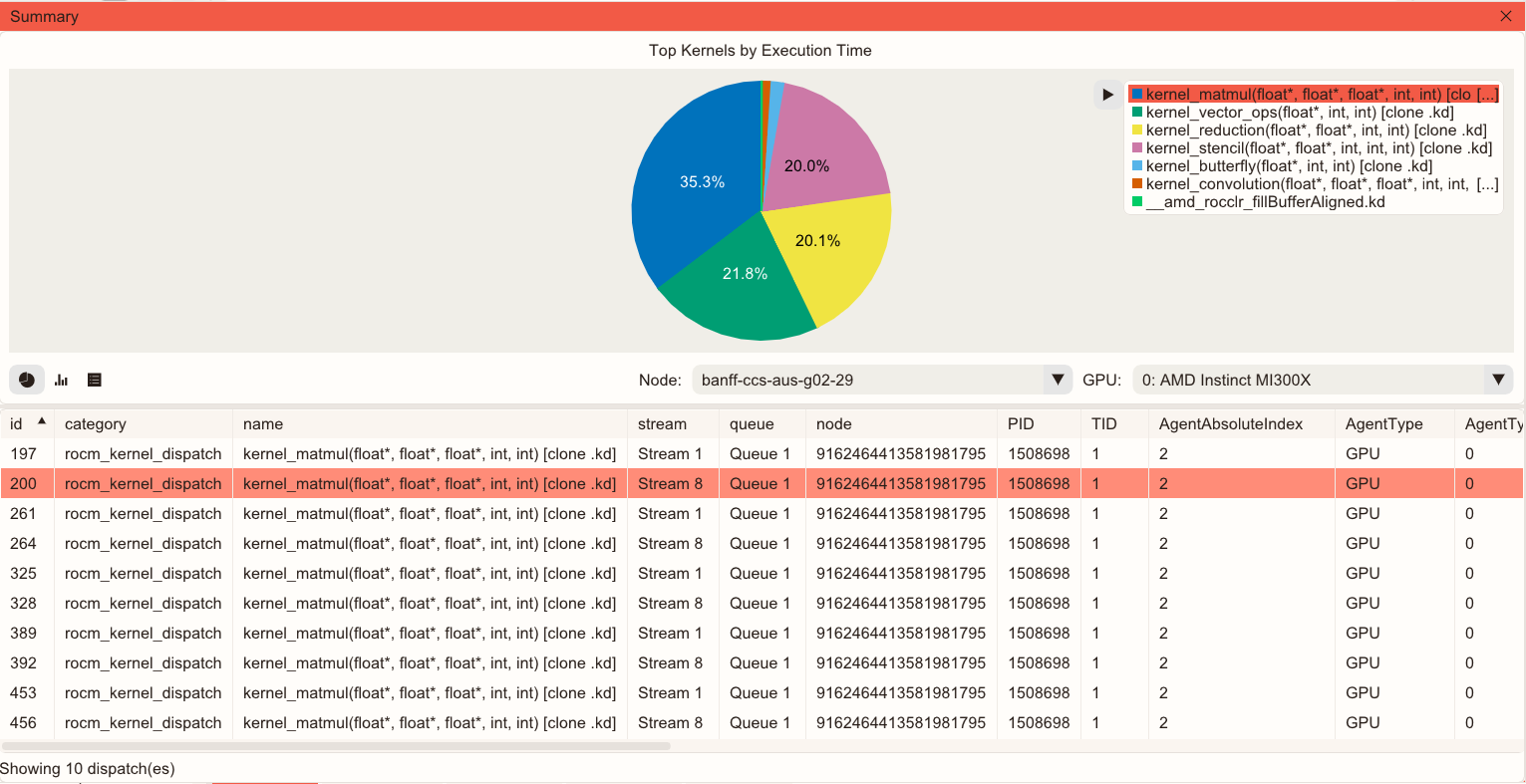
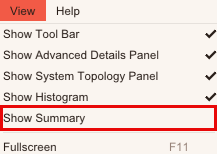
You can access Summary View by clicking View > Show Summary.
There are three ways you can view this data:
A pie chart

A bar chart

A table

You can select one of these views from the  icons in the bottom-left corner of the Summary View.
Once a kernel is selected, the dispatch details display in a table below the chart:

You can also select the Node and GPU from the drop-down menus to focus on the expected node and GPU:


Minimap#
You can open the Minimap by clicking  from the main Toolbar.
The Minimap provides a compact overview that visualizes event density of each track and/or counter values across the entire profiling trace, enabling you to identify hot spots without manually scanning the full timeline.
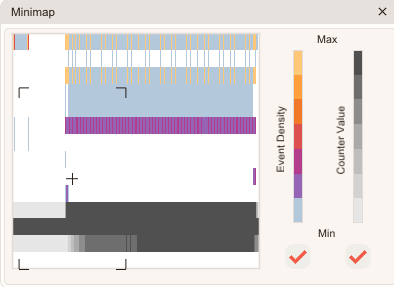
The Minimap provides:
An event density view to quickly identify regions with high volumes of CPU/GPU events.
A counter value view to visualize where sampled performance metrics peak.
Independent toggles to show or hide event density or counter value layers.
The ability to quickly locate performance-critical intervals by highlighting dense regions of events.
The ability to navigate large datasets with ease.
The ability to accelerate root-cause analysis by allowing rapid transitions between coarse-grained overview and fine-grained timeline details.
Search for events#
Search for events using the search box on the main Toolbar.

To search, type a search string and press Enter (search is case-insensitive).
Clicking on a row in the search results will bring the selected event into view on the Timeline View.
Clicking X clears the search results.
The search can match multiple substrings at once. Multiple search tokens must be surrounded by quotation marks without spaces (for example:
“term1””term2”).